Using tests in your projects
Last updated on
Tests are widely used in programming to ensure that classes, functions, and methods behave as expected. When code is updated, tests guarantee that the changes are not breaking any of the work done previously.
But tests can also be very useful in data analysis and visualization projects. You can use them to make sure your calculations align with an independent reference. Or, once you have results, to ensure your code changes are not having unexpected impacts on your findings or visuals.
Personally, I use tests to increase my confidence in my work. I can double-check something once and write a test for it. Going forward, I’ll know for sure that this thing is guaranteed. And if the test fails, it means something very bad is happening and needs my attention!
In this lesson, we will code a simple function to calculate percentages and we will create tests to make sure it works as expected.
Setup
Create a new, empty folder, open it in VS Code, and create a file named main.ts inside it. Add this line and save the file.
console.log("Hello!");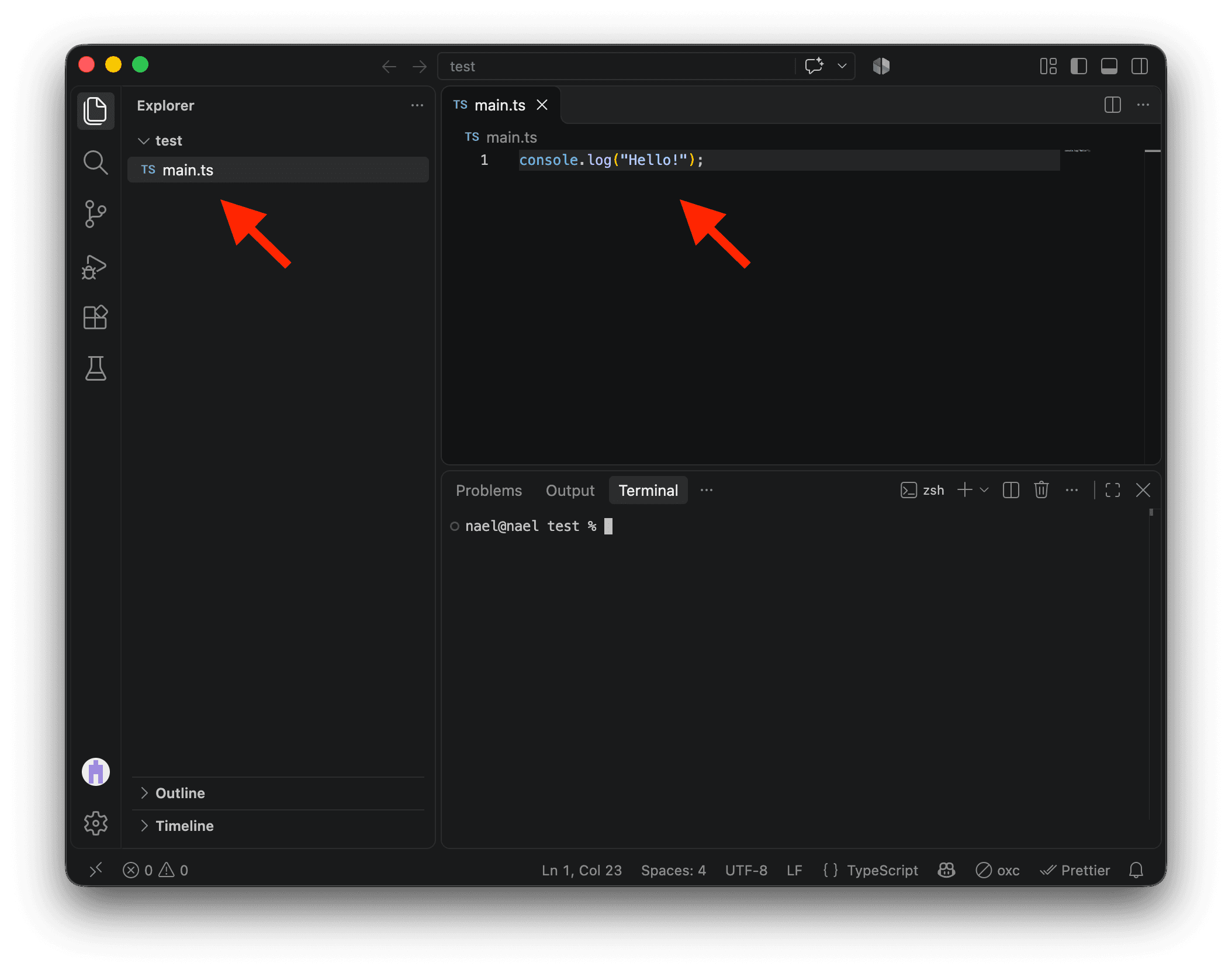
We’ll use Node’s built-in test runner. Once we’ve written a test, we’ll run it with node --test.
Writing the function to test
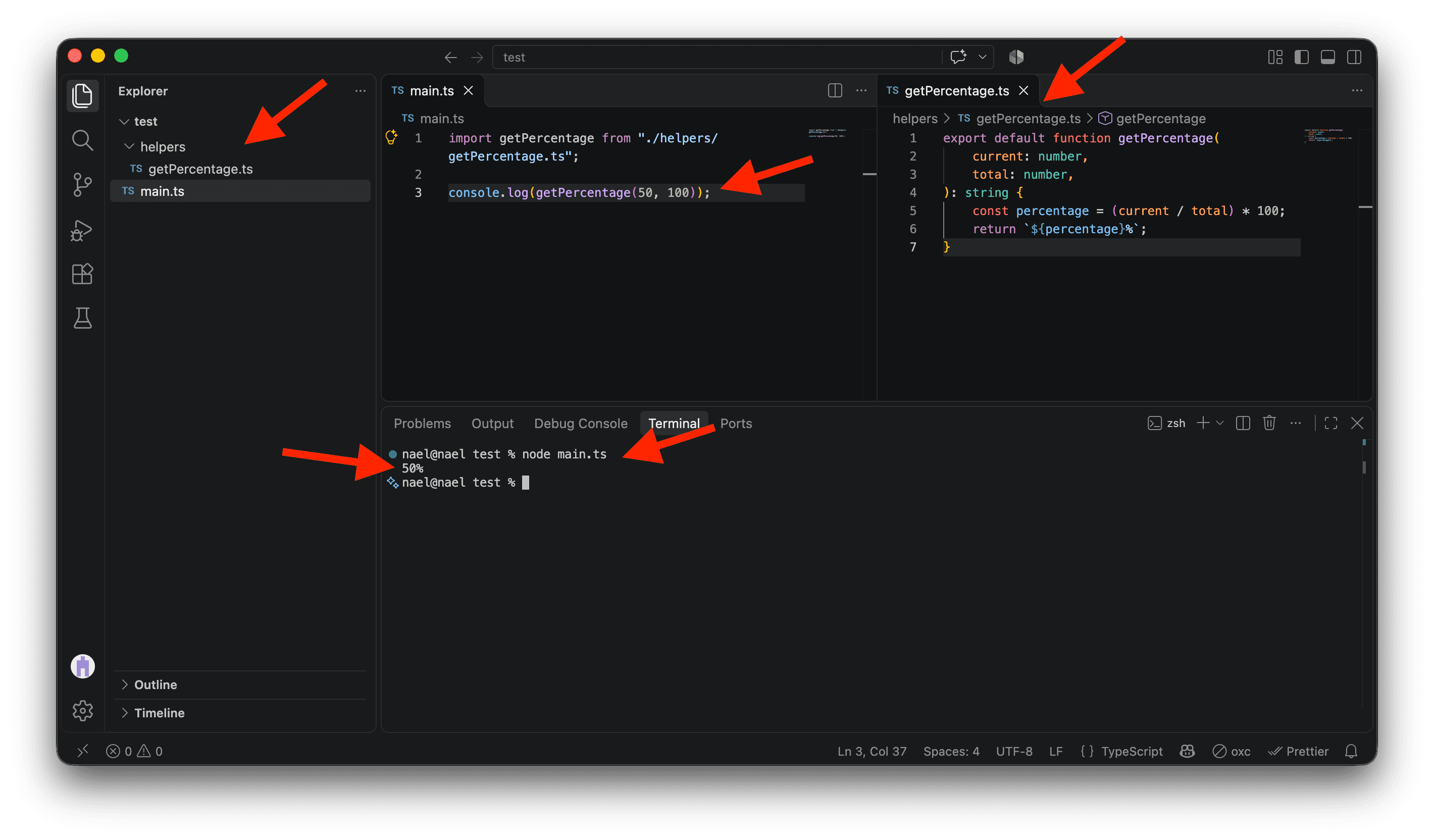
Create a helpers folder and put the getPercentage.ts file inside it with this code. It’s the function we want to test. It expects two numbers and returns the percentage as a string.
export default function getPercentage(
    current: number,
    total: number,
): string {
    const percentage = (current / total) * 100;
    return `${percentage}%`;
}
Update main.ts to use the function.
import getPercentage from "./helpers/getPercentage.ts";

console.log(getPercentage(50, 100));
Save the file and run the command below in the VS Code terminal.
node main.tsEverything looks fine! The function returns 50% as expected.
Creating tests
Is our function really working as expected? Let’s check!
Creating a test is simple. We need two things.
testfromnode:testlets us name a test and tell Node what code to run for it.assertfromnode:assert/strictlets us check the result. We’ll useassert.strictEqualto compare the result from the code we’re testing with the value we expect.
Both come with Node, so you don’t have to install anything else.
Now let’s create the test file. I like to mirror the structure of the rest of the code in my tests. Create a tests folder at the root of the project, put a helpers folder inside it, and create getPercentage.test.ts there. The .test.ts ending helps Node find it when you run the tests.
Add the following code to tests/helpers/getPercentage.test.ts.
import assert from "node:assert/strict";
import { test } from "node:test";
import getPercentage from "../../helpers/getPercentage.ts";

test("should return 50% for 50 out of 100", () => {
  const result = getPercentage(50, 100);
  assert.strictEqual(result, "50%");
});
Here’s what this code is doing.
- Line 5 creates a new test with a description. You can write whatever you want there. Keep it simple and clear.
- Lines 6 and 7 are the code the test runs. Line 6 calls
getPercentage(50, 100)and stores the returned value inresult. Line 7 usesassert.strictEqualto compareresultwith the expected string,"50%".
If result is exactly the string "50%", the test passes. Otherwise, it fails.
Running tests
Open the terminal in VS Code and run the command below. Node looks for test files ending in .test.ts or .test.js in your project, including in subfolders, and runs them.
node --testYou should see your test name with a check mark beside it, showing that it passed.
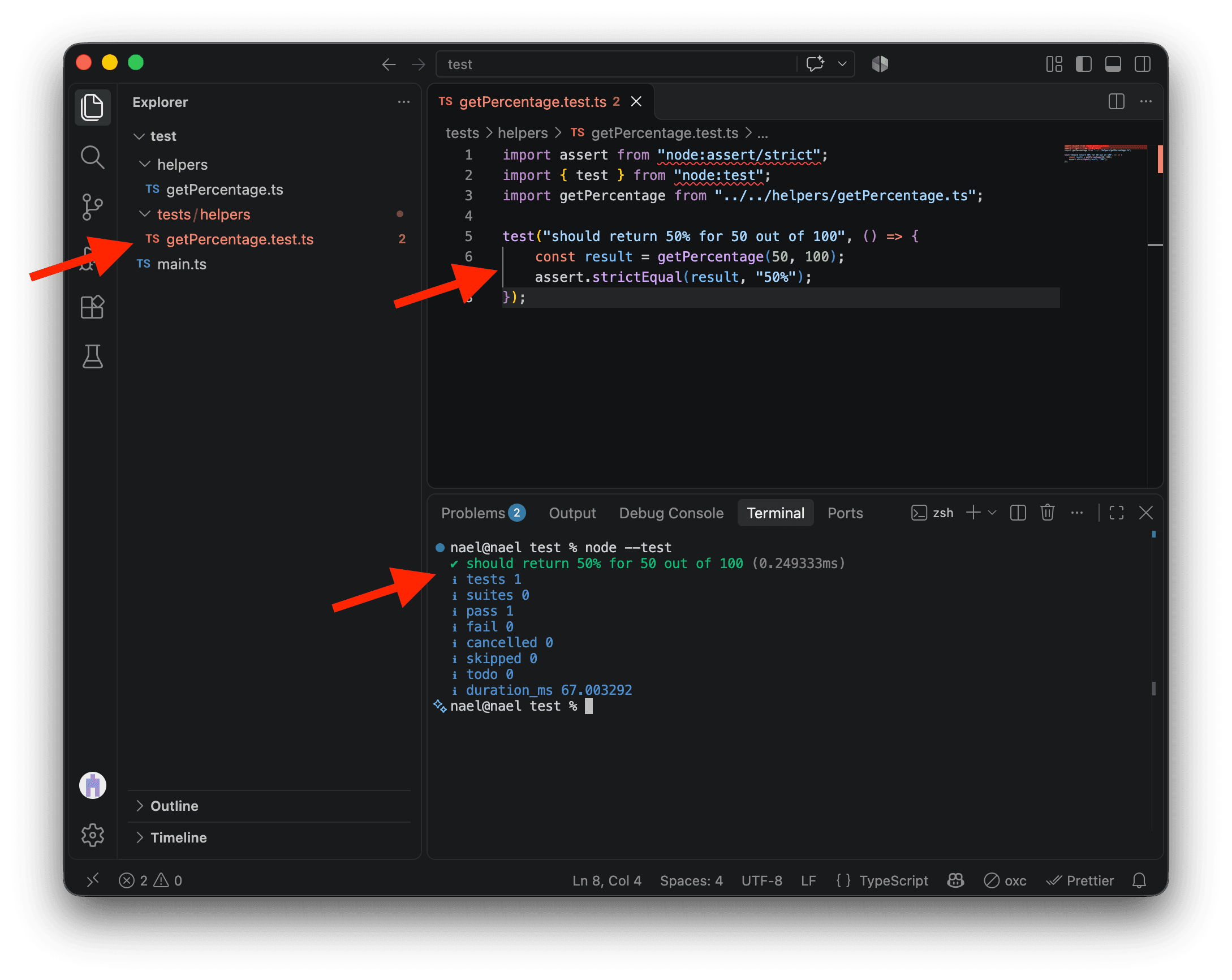
You might see type errors on lines 1 and 2 in VS Code. You can ignore them for this lesson. Both modules come with Node, and the test will still run.
Adding tests
Depending on your context, the test we wrote just above might be sufficient. For example, maybe you just wanted to double-check the result of one step in your data analysis and you want it to stay this way going forward.
Let’s add two more tests.
- One checks that
getPercentage(1, 3)returns"33.33%", with two decimal places. - The other checks that
getPercentage(1, 0)throws an error because division by zero is undefined. We useassert.throwsto check for the messageTotal must not be zero.
Write both tests against the current version of getPercentage. Update the test file with the code below.
import assert from "node:assert/strict";
import { test } from "node:test";
import getPercentage from "../../helpers/getPercentage.ts";

test("should return 50% for 50 out of 100", () => {
  const result = getPercentage(50, 100);
  assert.strictEqual(result, "50%");
});

test("should round 1 out of 3 to two decimal places", () => {
  const result = getPercentage(1, 3);
  assert.strictEqual(result, "33.33%");
});

test("should throw an error when the total is zero", () => {
  assert.throws(() => getPercentage(1, 0), { message: "Total must not be zero." });
});
Save the test file and run the tests again.
node --testYou’ll see the two new tests fail. The first test still passes.
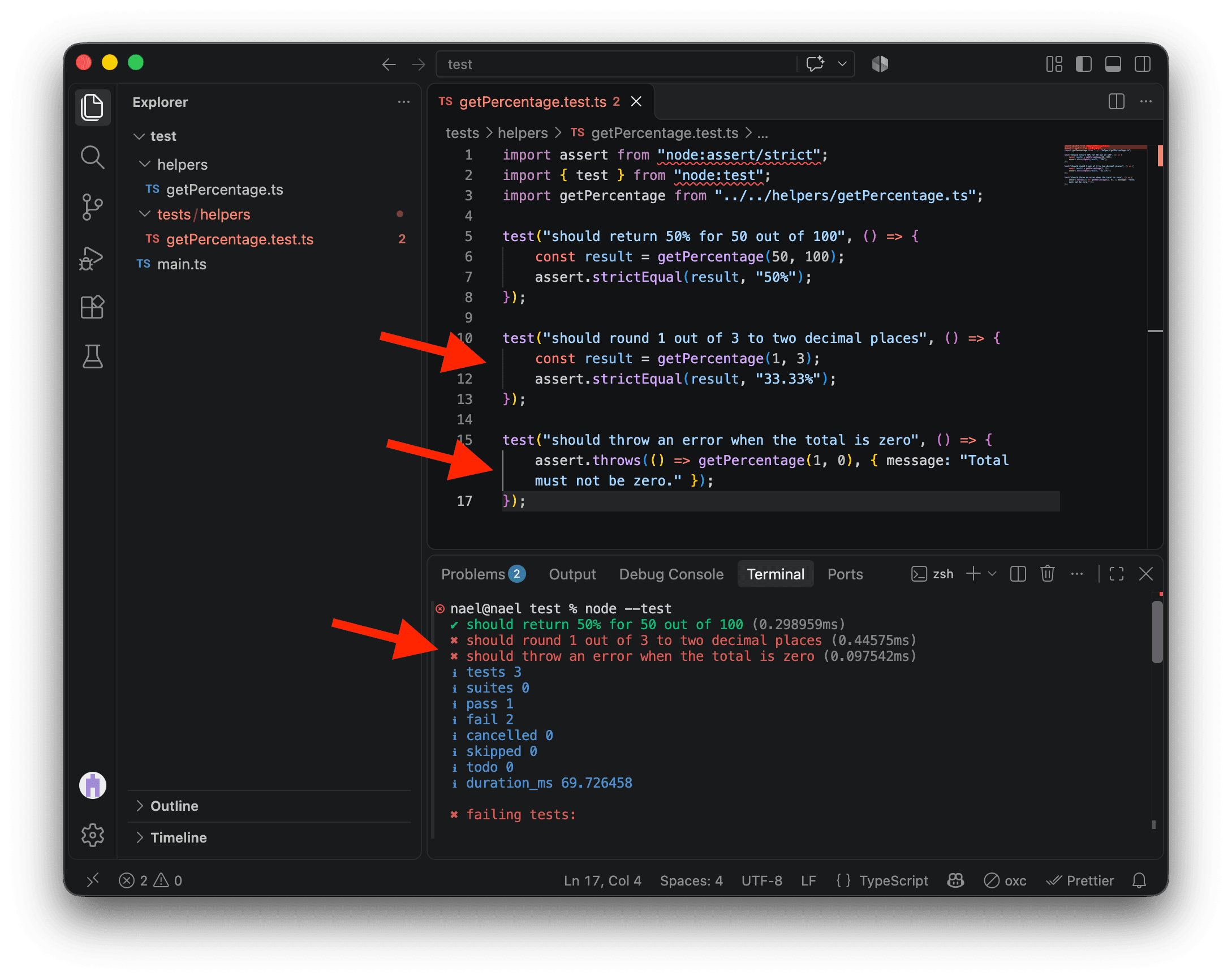
Scroll down in your terminal to see why each test failed. The rounding test expected "33.33%", but getPercentage(1, 3) returned "33.33333333333333%" with many more decimal places.
test at tests/helpers/getPercentage.test.ts:10:1
✖ should round 1 out of 3 to two decimal places (0.44575ms)
  AssertionError [ERR_ASSERTION]: Expected values to be strictly equal:
  actual expected

  '33.33333333333333%'

      at TestContext.<anonymous> (file:///Users/nael/Desktop/test/tests/helpers/getPercentage.test.ts:12:12)
      at Test.runInAsyncScope (node:async_hooks:227:14)
      at Test.run (node:internal/test_runner/test:1402:25)
      at Test.processPendingSubtests (node:internal/test_runner/test:974:18)
      at Test.postRun (node:internal/test_runner/test:1542:19)
      at Test.run (node:internal/test_runner/test:1467:12)
      at async startSubtestAfterBootstrap (node:internal/test_runner/harness:387:3) {
    generatedMessage: true,
    code: 'ERR_ASSERTION',
    actual: '33.33333333333333%',
    expected: '33.33%',
    operator: 'strictEqual',
    diff: 'simple'
  }
For the division-by-zero test, Missing expected exception tells us that getPercentage(1, 0) ran without throwing an error.
test at tests/helpers/getPercentage.test.ts:15:1
✖ should throw an error when the total is zero (0.097542ms)
  AssertionError [ERR_ASSERTION]: Missing expected exception.
      at TestContext.<anonymous> (file:///Users/nael/Desktop/test/tests/helpers/getPercentage.test.ts:16:12)
      at Test.runInAsyncScope (node:async_hooks:227:14)
      at Test.run (node:internal/test_runner/test:1402:25)
      at Test.processPendingSubtests (node:internal/test_runner/test:974:18)
      at Test.postRun (node:internal/test_runner/test:1542:19)
      at Test.run (node:internal/test_runner/test:1467:12)
      at async Test.processPendingSubtests (node:internal/test_runner/test:974:7) {
    generatedMessage: false,
    code: 'ERR_ASSERTION',
    actual: undefined,
    expected: { message: 'Total must not be zero.' },
    operator: 'throws',
    diff: 'simple'
  }
Let’s fix getPercentage so all our tests pass. 👷
Add rounding
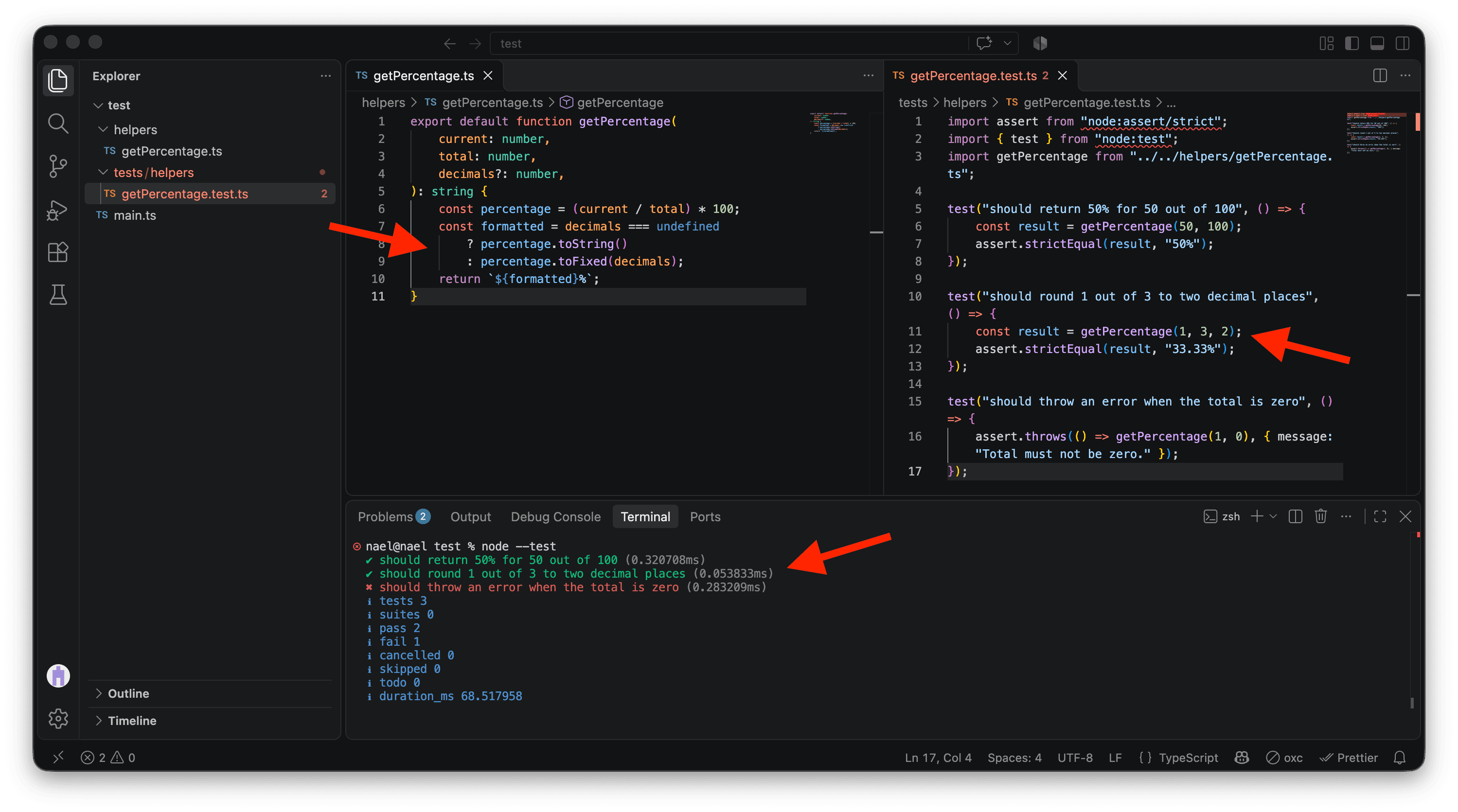
Let’s start with rounding. Update helpers/getPercentage.ts as shown below to add an optional decimals parameter. If you leave it out, the function behaves as before. If you pass a number, toFixed rounds the percentage to that many decimal places.
export default function getPercentage(
  current: number,
  total: number,
  decimals?: number,
): string {
  const percentage = (current / total) * 100;
  const formatted = decimals === undefined
    ? percentage.toString()
    : percentage.toFixed(decimals);
  return `${formatted}%`;
}
In the rounding test, add 2 as the third argument to getPercentage to ask for two decimal places. The changed line is highlighted below.
import assert from "node:assert/strict";
import { test } from "node:test";
import getPercentage from "../../helpers/getPercentage.ts";

test("should return 50% for 50 out of 100", () => {
  const result = getPercentage(50, 100);
  assert.strictEqual(result, "50%");
});

test("should round 1 out of 3 to two decimal places", () => {
  const result = getPercentage(1, 3, 2);
  assert.strictEqual(result, "33.33%");
});

test("should throw an error when the total is zero", () => {
  assert.throws(() => getPercentage(1, 0), { message: "Total must not be zero." });
});
Save both files and run the tests again with the command below.
node --testThe first test still passes without the decimals argument. The second now passes too, so our rounding change worked! 🎉
The third test still fails. That’s expected because we haven’t handled division by zero yet.
Handle division by zero
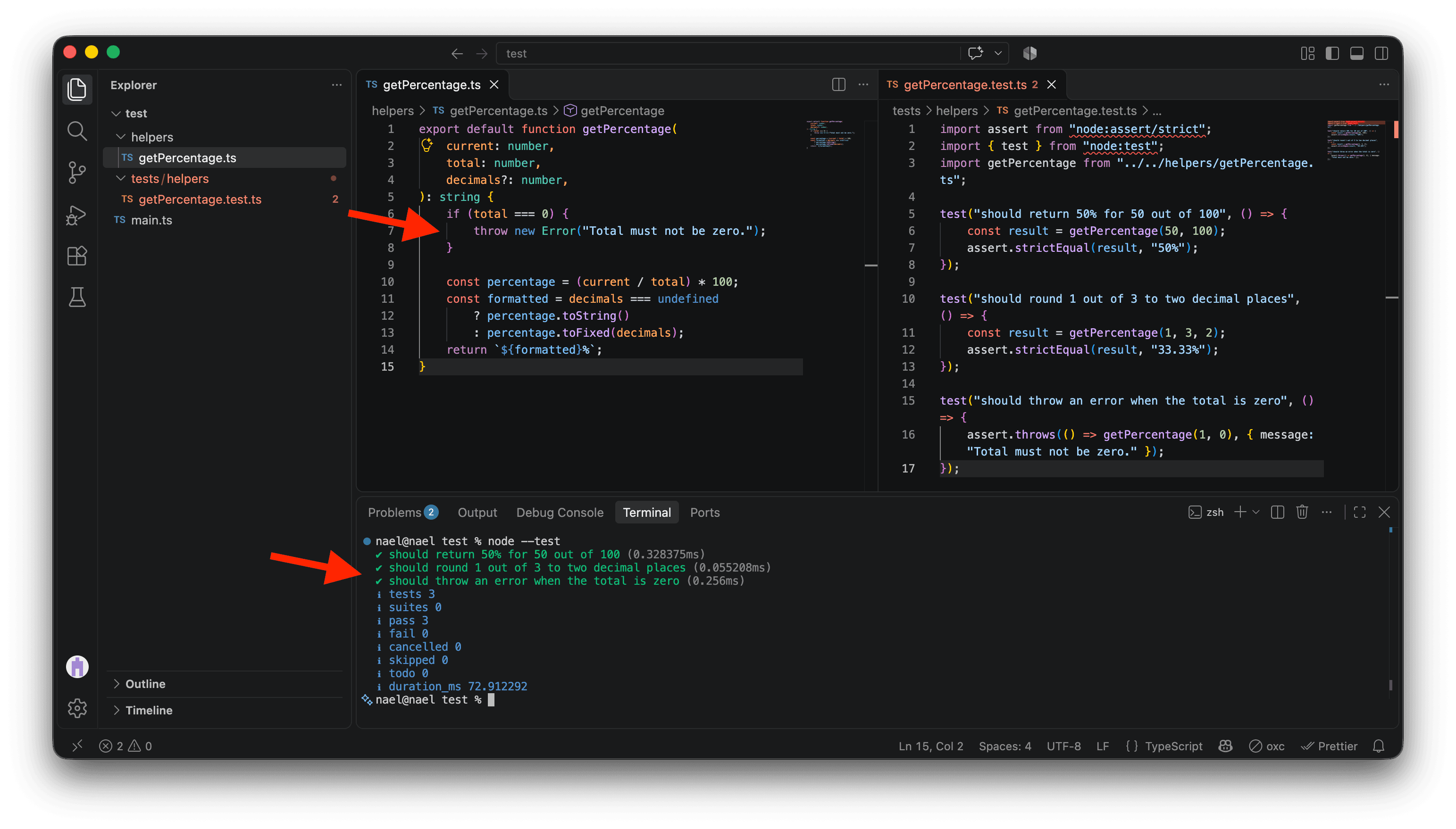
To handle division by zero, add a check before dividing. Use an if statement to check whether total is zero. If it is, throw an error right away with the message the test expects.
Update getPercentage as shown below and save the file.
export default function getPercentage(
  current: number,
  total: number,
  decimals?: number,
): string {
  if (total === 0) {
    throw new Error("Total must not be zero.");
  }

  const percentage = (current / total) * 100;
  const formatted = decimals === undefined
    ? percentage.toString()
    : percentage.toFixed(decimals);
  return `${formatted}%`;
}
Run the tests once more with this command.
node --testNow all our tests pass! 🎉
Running and watching tests
You don’t need to run your whole test suite every time you change your code. To run a specific test file, pass its path to Node.
node --test tests/helpers/getPercentage.test.tsTo run a specific test, pass its description to --test-name-pattern.
node --test --test-name-pattern="should round 1 out of 3 to two decimal places"Just like with node --watch main.ts, you can watch your tests with the command below. Node automatically reruns the affected tests when you save a change to a test file or one of its dependencies.
node --test --watchAutomated tests
You can always run tests locally, of course. You can even define an npm command to make it easier to run them.
But if you are using GitHub, you can set up automated tests in your projects. This is a common setup for open-source libraries, but you can use it for anything you want.
For example, I have hundreds of tests for the Simple Data Analysis library. You can explore them here .
I use GitHub Actions to run these tests automatically before publishing a new version of the library. The setup is simple. One small file tells GitHub to run the tests in the cloud.
Testing web pages and data visualizations
In this lesson, we ran simple tests locally to check that our function returned the values we expected.
You can also test something more complex, like a web page. Does clicking a button or selecting an option display the right thing on the page? A library like Playwright can run those tests in a browser and check what appears.
You can also test charts you export with Simple Data Analysis . Say your script saves a chart as an SVG. As you keep working on your analysis, you can compare the new SVG’s text with a version you’ve saved to catch unexpected changes to the chart, including changes in the data it shows.
If your script saves the chart as a PNG, you can compare it byte for byte with a reference file or use an image library to compare the pixels.
Just remember, pretty much anything is testable!
Conclusion
You don’t always need tests, but when you start working on a long-term or complex project, taking the time to write simple tests each time you are creating a new method or function can become time well invested.
You’ll be more confident in your code and, between type checking and tests, you’ll be able to avoid a lot of nasty bugs and errors! 🐞
And if you do have a bug to fix, adding a test to cover it will make sure it won’t ever happen again!
Happy testing! 👷