Stock market simulator 📈
Last updated on
Welcome to this new project! We are going to fetch historical stock market data and use it to estimate how much we would have gained or lost by investing in publicly traded companies.
Before starting, make sure you have completed the Setup lesson in Chapter 1, as well as the TypeScript fundamentals and Building with TypeScript sections. This project is designed to help you practice everything we’ve covered so far in this course.
What’s the question?
It’s always important to clearly identify the question we want to answer before diving too fast into an ocean of data.
So, today, our question is:
- How much would we have gained or lost by investing in a given publicly traded company on a specific date?
To answer this, we need to calculate the difference between the initial amount and the final amount.
We can also identify three variables that will impact the result:
- The chosen company
- The initial amount of money
- The date of the investment
With this in mind, let’s start!
Setup
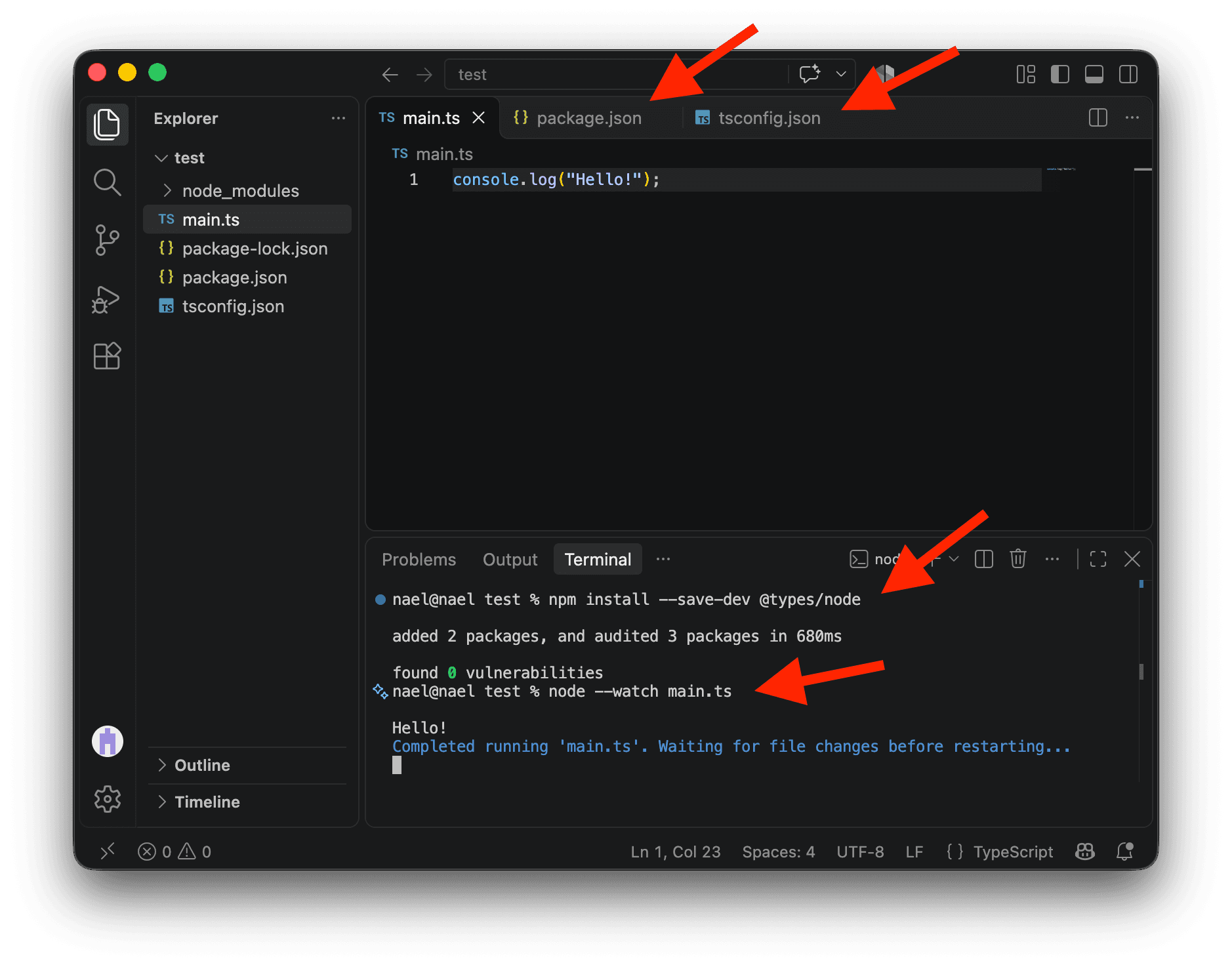
Create a new, empty folder on your computer, open it with VS Code, and create a file named main.ts inside it.
Type this code in main.ts and save the file:
console.log("Hello!");Now let’s configure our project.
Create a package.json file in your project folder with this content so VS Code knows we’ll use modern TypeScript module syntax:
{
  "type": "module"
}
Then create a tsconfig.json file in the same folder so TypeScript checks our code using these modern module rules:
{
  "compilerOptions": {
    "module": "nodenext",
    "types": ["node"],
    "allowImportingTsExtensions": true,
    "noEmit": true
  }
}
The last thing we need to do is install the types for Node.js. Open the terminal (Command + J on Mac or Control + J on Windows) and run:
npm install --save-dev @types/nodeNow run this command in the terminal:
node --watch main.tsThis runs our code and automatically runs it again each time we save a change, so we can see the results as we work.
The data
Yahoo Finance
To run our simulator, we need historical stock market prices. One of the most common sources for financial data is Yahoo Finance .
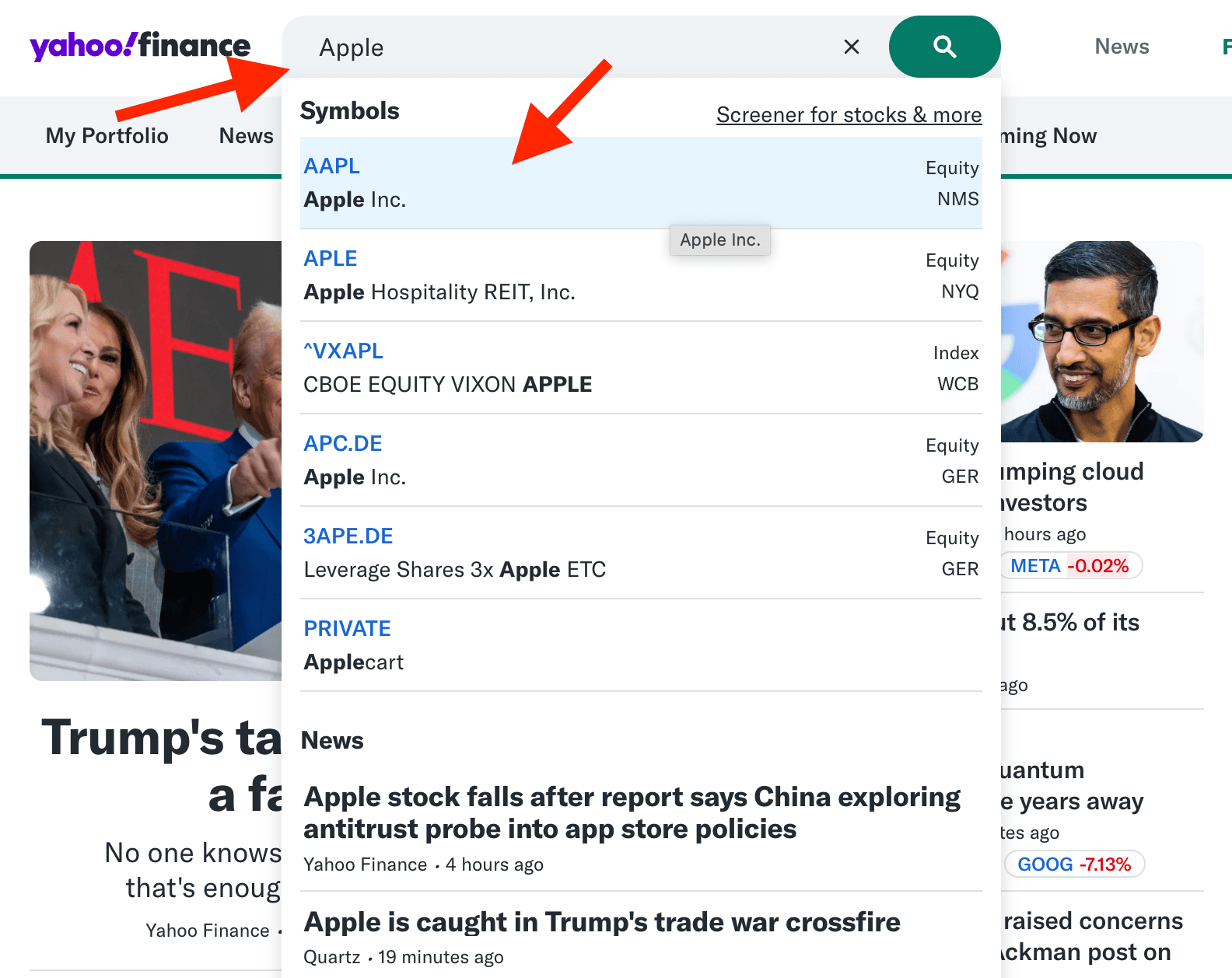
On the home page , you can search for a publicly traded company. For example, search for Apple and click on the relevant result.
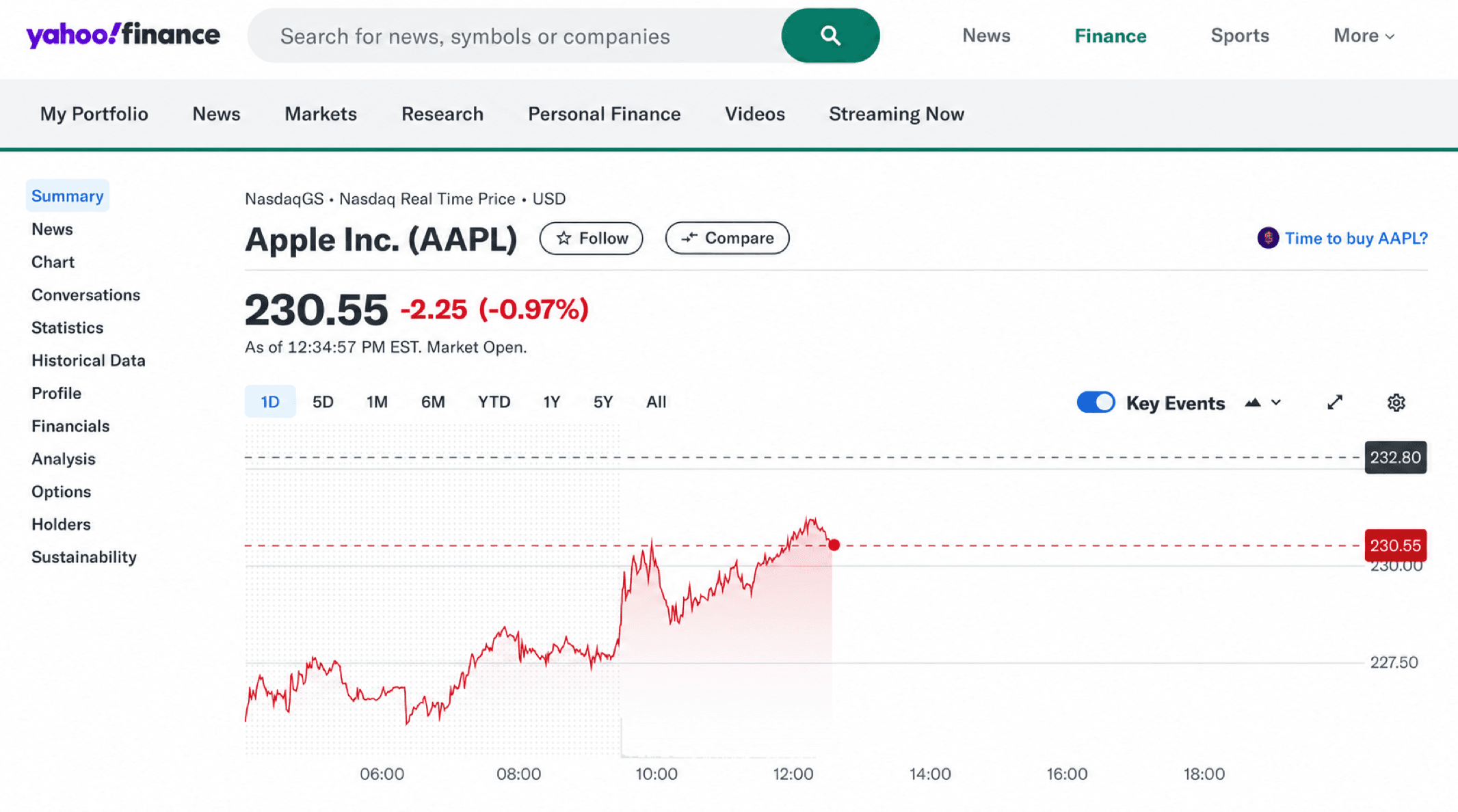
You’ll land on Apple’s stock page. This is super interesting data! But how can we get it into our script? 🤔
Fetching the data
Don’t worry, I created a function just for that!
We’re going to install my open-source Journalism Finance library and use the getYahooFinanceData function. It fetches Yahoo Finance data as a clean array of objects containing timestamps and values.
But be careful: getYahooFinanceData uses an undocumented Yahoo Finance endpoint and is not affiliated with or endorsed by Yahoo. The same is true of many other open-source libraries you might find for retrieving this kind of data. Before using it, review Yahoo’s terms and any applicable data-provider restrictions .
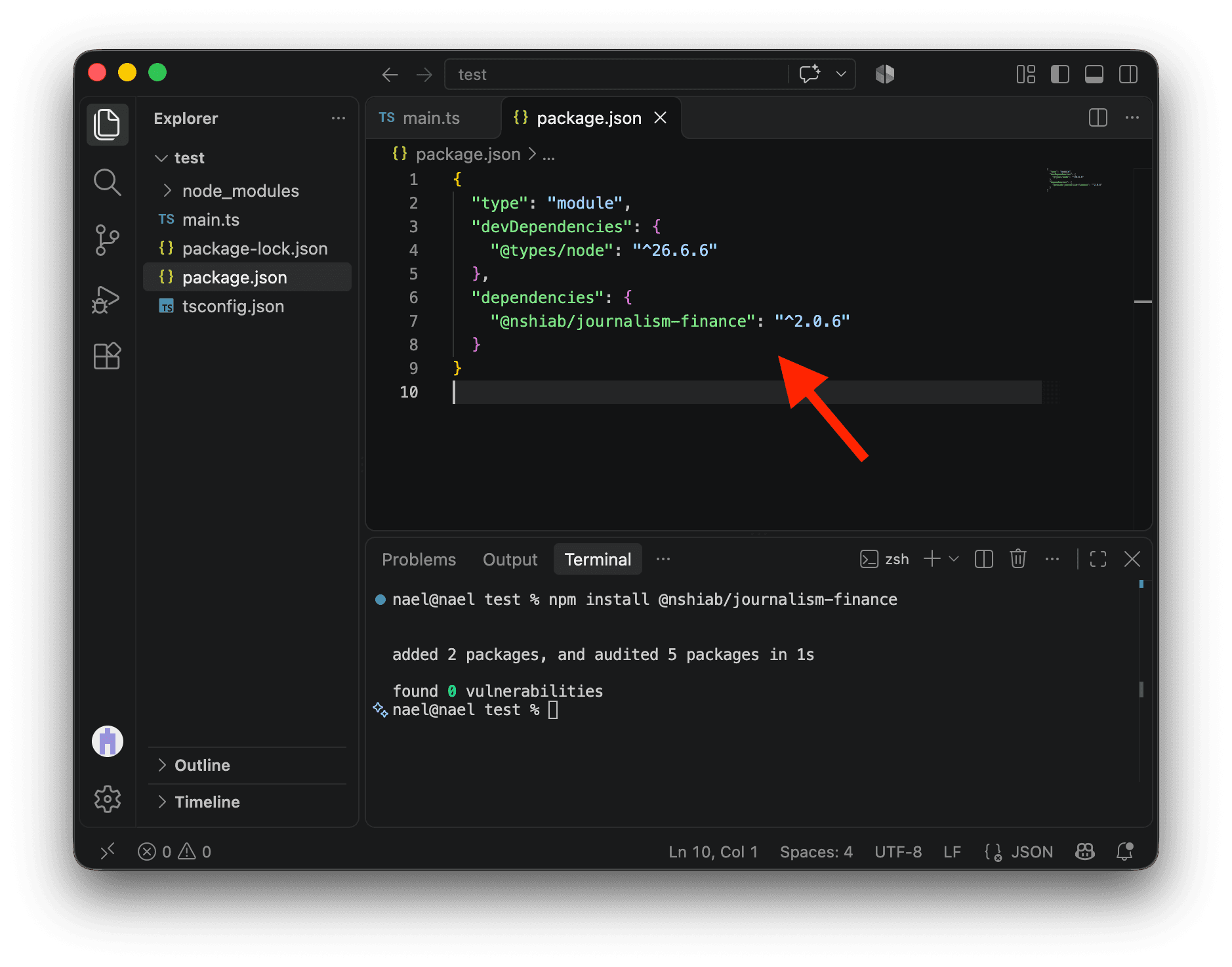
For now, let’s stop watching and running main.ts by clicking in the terminal and pressing CTRL + C. Then, install the library by running this command in the terminal:
npm install @nshiab/journalism-financeThe dependency is now listed in package.json and installed in node_modules. npm also updates package-lock.json, which records the exact dependency versions.
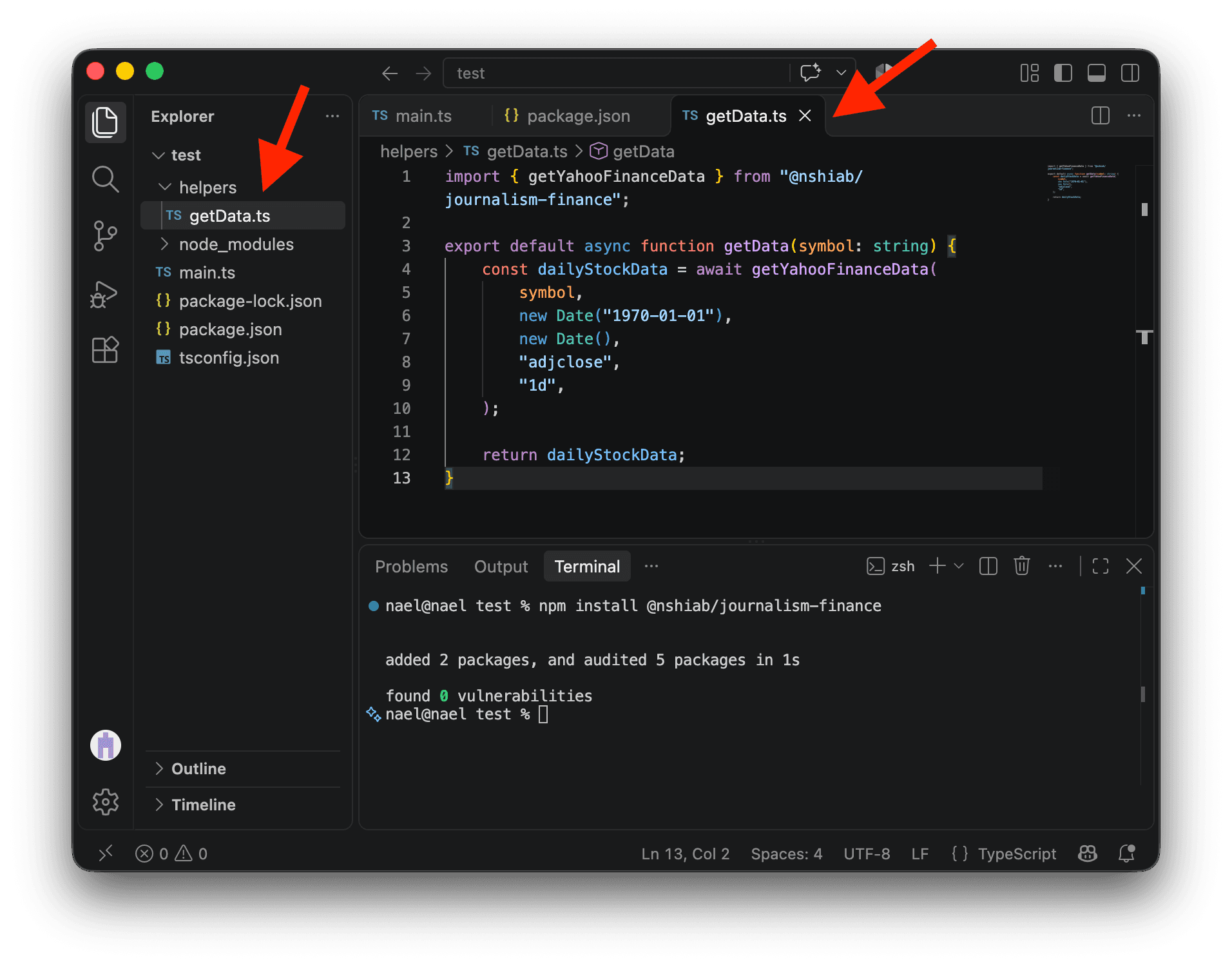
We’ll first gather the data, then use it. To keep the project organized, we’ll put reusable helper functions in their own files. Create a helpers folder in your project and add getData.ts inside it. This function will retrieve data for a publicly traded company.
In this first helper, we import getYahooFinanceData from @nshiab/journalism-finance, call it with parameters explained below, and return the data. getData expects one string parameter, symbol. Because the function is general, we can reuse it for any company if needed.
Adding export default lets us import the helper where we need it, which in this case will be main.ts.
import { getYahooFinanceData } from "@nshiab/journalism-finance";

export default async function getData(symbol: string) {
  const dailyStockData = await getYahooFinanceData(
    symbol,
    new Date("1970-01-01"),
    new Date(),
    "adjclose",
    "1d",
  );

  return dailyStockData;
}
Here are the arguments we pass to getYahooFinanceData:
symbolis the stock market symbol. We will useAAPLfor Apple.- The two dates define the period. We start in 1970 and finish today so we get all available prices.
"adjclose"selects the adjusted closing price. It accounts for events such as stock splits and dividends, making it useful for estimating investment returns."1d"asks for the value at the end of each day.
Note that getYahooFinanceData is asynchronous because it fetches data over the Internet. We use the await keyword to make sure all the data is received before the rest of the script runs.
Under the hood, getYahooFinanceData fetches data from a Yahoo Finance API. An API, or Application Programming Interface, allows programs to exchange data.
Now, we can update main.ts to import and call our new helper, keeping our code clean.
On line 3, we create the symbol variable and assign Apple’s stock market symbol, AAPL, to it. We pass this variable to getData, which expects a symbol parameter. Again, we use await to make sure we receive all the data before continuing. On line 6, we log the first ten results as a table.
import getData from "./helpers/getData.ts";

const symbol = "AAPL";
const dailyStockData = await getData(symbol);

console.table(dailyStockData.slice(0, 10));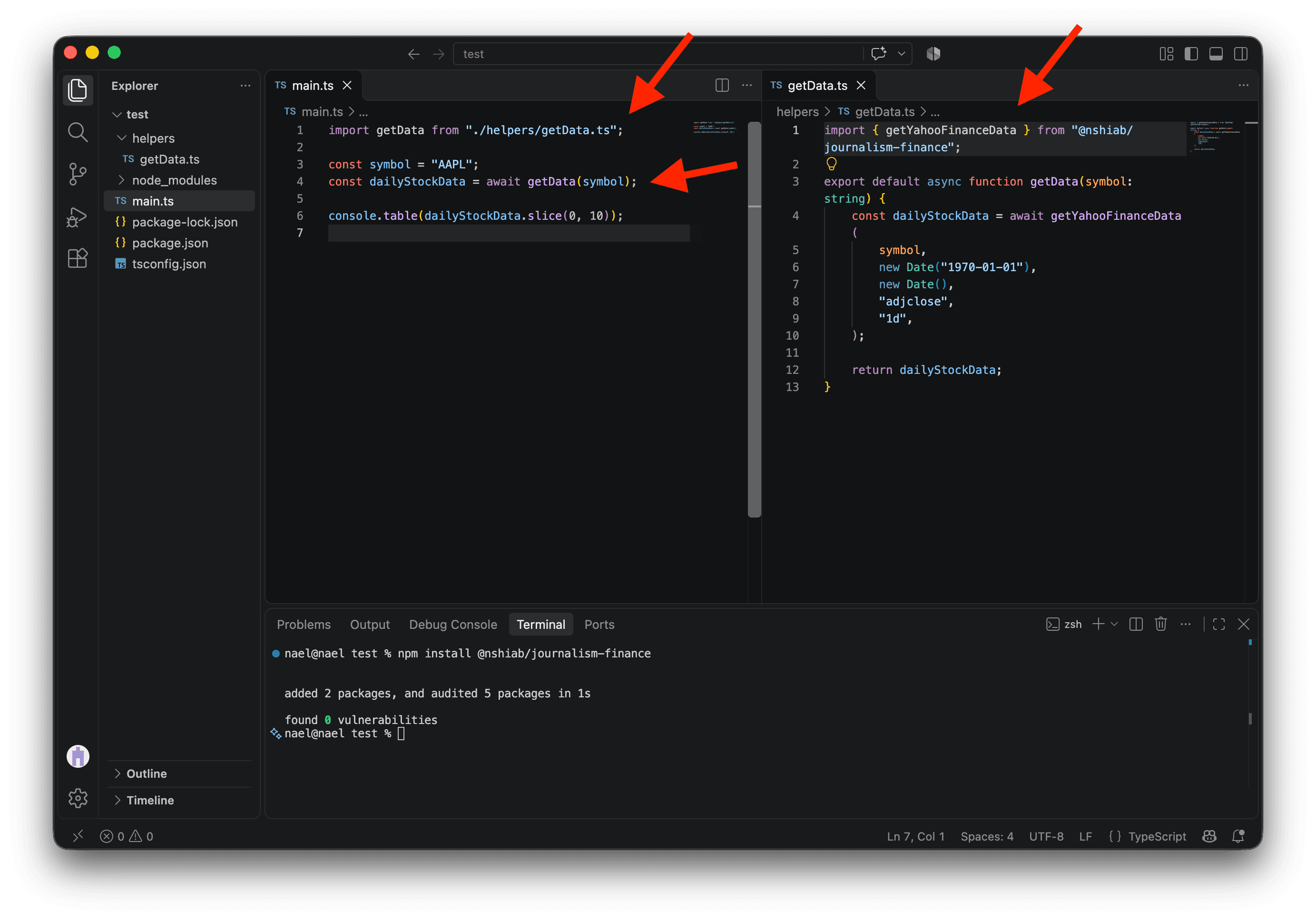
But before running this code, we need to take care of one more thing.
Caching
If we were to run main.ts right now, the data would be refetched every time the code is executed.
We don’t want to overwhelm Yahoo’s servers with our requests. We must respect their infrastructure. Also, we don’t want to get blacklisted… 🫣 So let’s cache the data.
The idea is pretty simple. The first time we fetch the data, we write it to a file. Then, every time the code runs again, if the file exists (which it will), we use it instead of fetching the data again.
Create a data folder in your project to store the cached data.
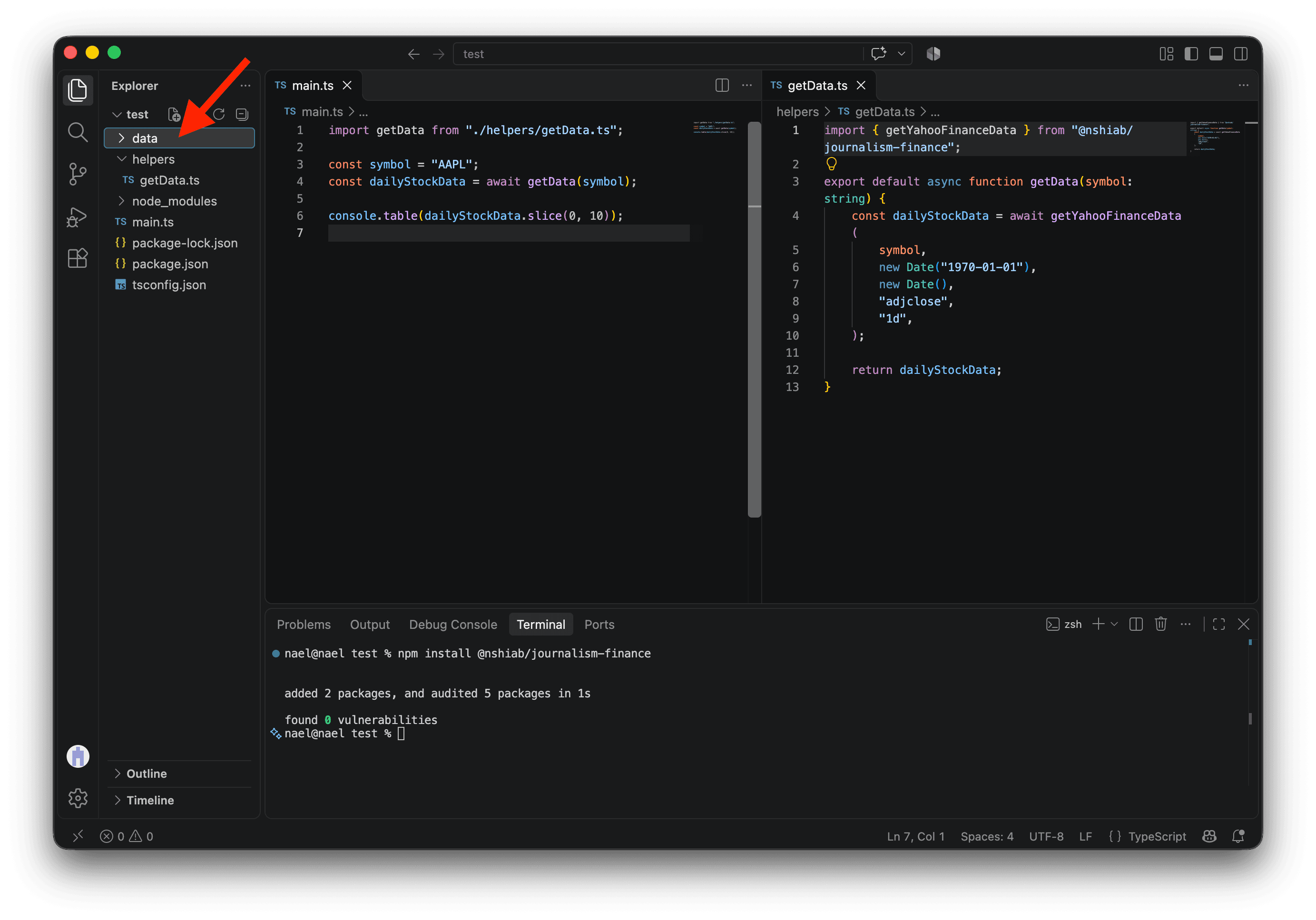
Now, we’re going to update getData to check whether a cached file exists. To do that, we use existsSync() from node:fs, which returns true if the file exists and false otherwise. We can then use if and else branches to read the data from the file if it exists, or fetch fresh data if it doesn’t.
import { getYahooFinanceData } from "@nshiab/journalism-finance";
import { existsSync } from "node:fs";
import { readFile, writeFile } from "node:fs/promises";

export default async function getData(symbol: string) {
  const path = `./data/${symbol}.json`;
  let dailyStockData;

  if (existsSync(path)) {
    console.log(`=> Cached data found at ${path}. Reading it...`);
    dailyStockData = JSON.parse(await readFile(path, "utf8"));
  } else {
    console.log("=> No cached data found. Fetching it from Yahoo Finance...");
    dailyStockData = await getYahooFinanceData(
      symbol,
      new Date("1970-01-01"),
      new Date(),
      "adjclose",
      "1d",
    );
    console.log(`=> Data fetched. Writing it to ${path} for the next run...`);
    await writeFile(path, JSON.stringify(dailyStockData));
  }

  return dailyStockData;
}
Here’s what happens when you run this code:
pathincludes the stock symbol so each company has its own cache file.existsSync()checks for the file. If found,readFile(path, "utf8")reads it as text andJSON.parse()restores the array.- Otherwise, we fetch prices, convert the array to JSON, and save it with
writeFile(). - Finally, the function returns the data from either source.
Now, run and watch main.ts:
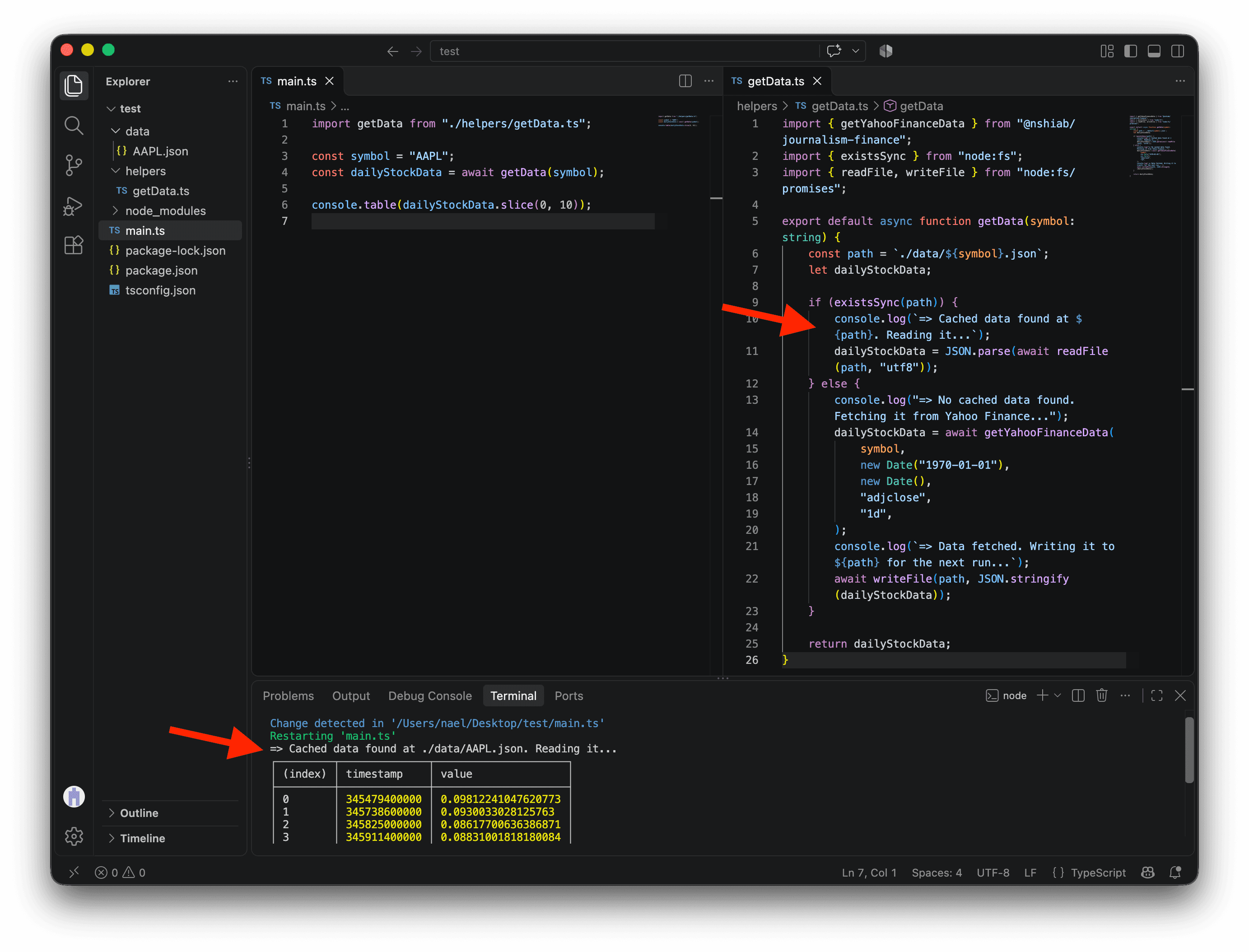
node --watch main.tsThe first time you run this code, the cache file does not exist. The else block fetches the data and writes AAPL.json in data.
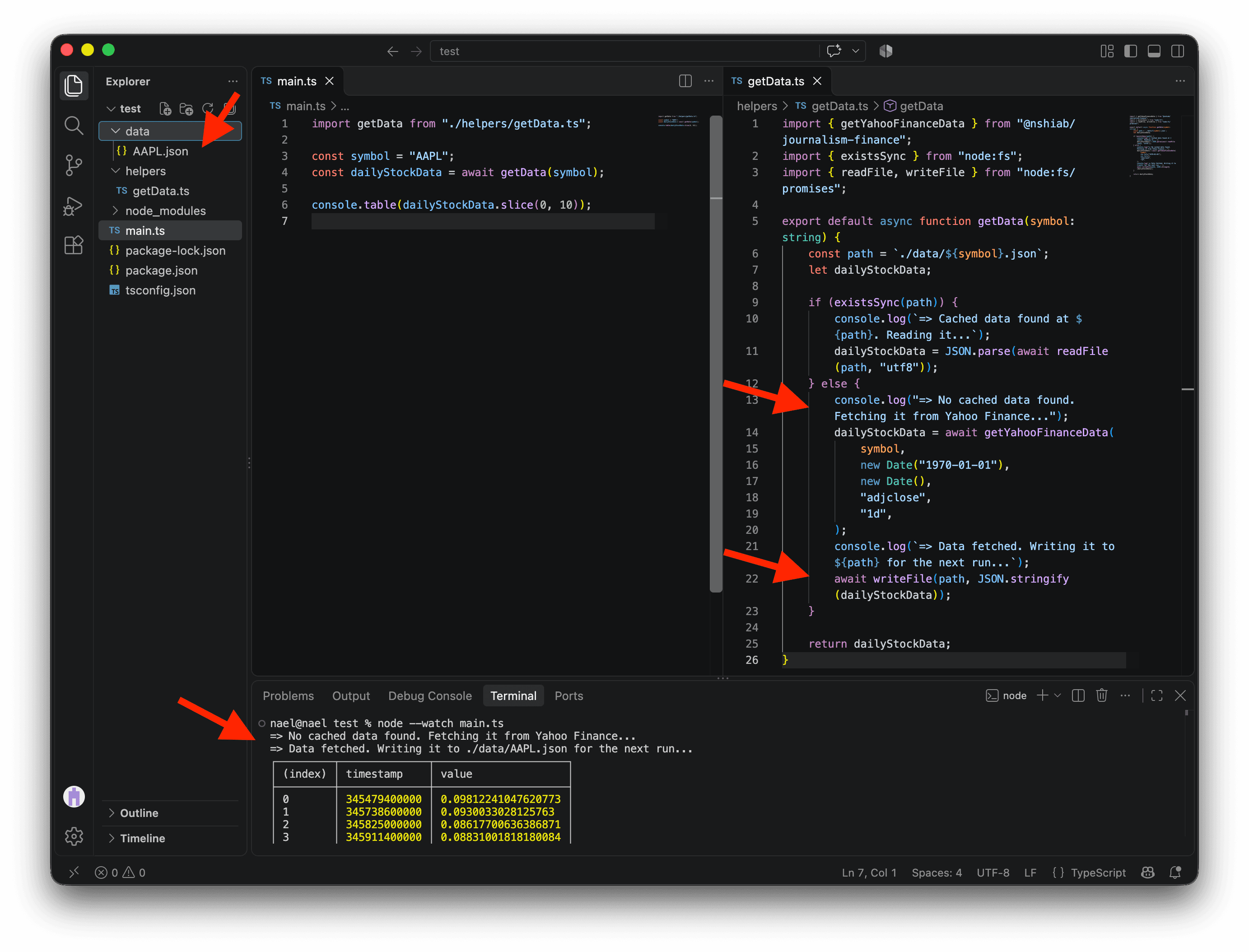
Wondering what timestamp means? This huge number is the number of milliseconds since January 1, 1970. This is how JavaScript tracks dates and times behind the scenes. Here, the library gives us the timestamp directly instead of a date, but as we’ll see, JavaScript makes it easy to go back and forth between dates and timestamps.
Now, rerun main.ts by saving it again (CMD + S on Mac or CTRL + S on PC). This time, the condition is met because Node.js finds AAPL.json. The if block runs, while everything under else is skipped. We don’t need to fetch the data again. We read it from our local file instead. This is faster and doesn’t annoy Yahoo’s servers with another request.
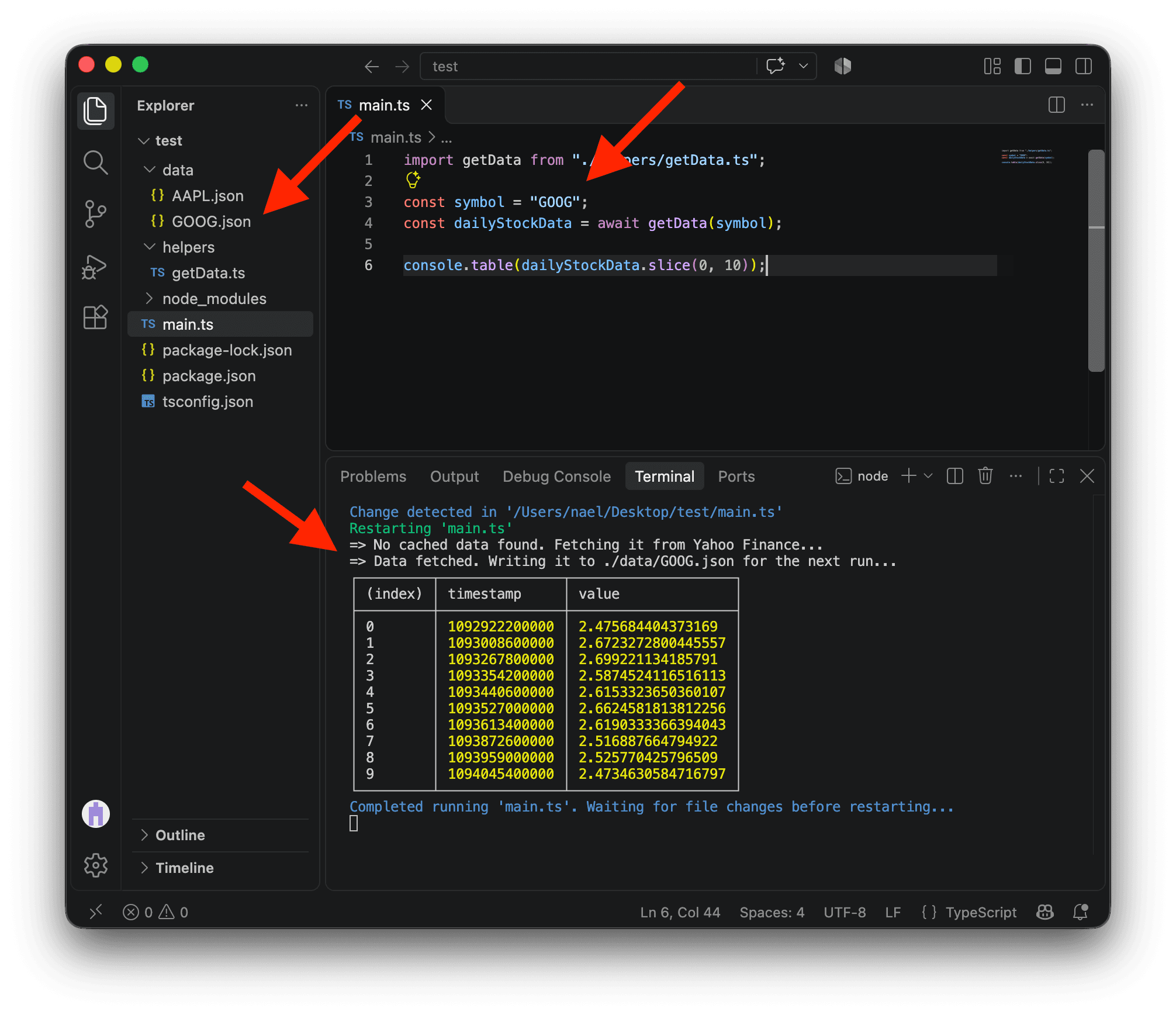
You can keep cached data for multiple companies. For example, replace AAPL in the symbol variable with GOOG to get the historical stock prices of Alphabet (formerly Google) and run the code.
import getData from "./helpers/getData.ts";

const symbol = "GOOG";
const dailyStockData = await getData(symbol);

console.table(dailyStockData.slice(0, 10));
You’ll see another file, GOOG.json, being created in data.
If you switch back to AAPL, the data is still there. No need to fetch it again!
And if you want more up-to-date prices, just delete the files in data and rerun your code. Easy!
import getData from "./helpers/getData.ts";

const symbol = "AAPL";
const dailyStockData = await getData(symbol);

console.table(dailyStockData.slice(0, 10));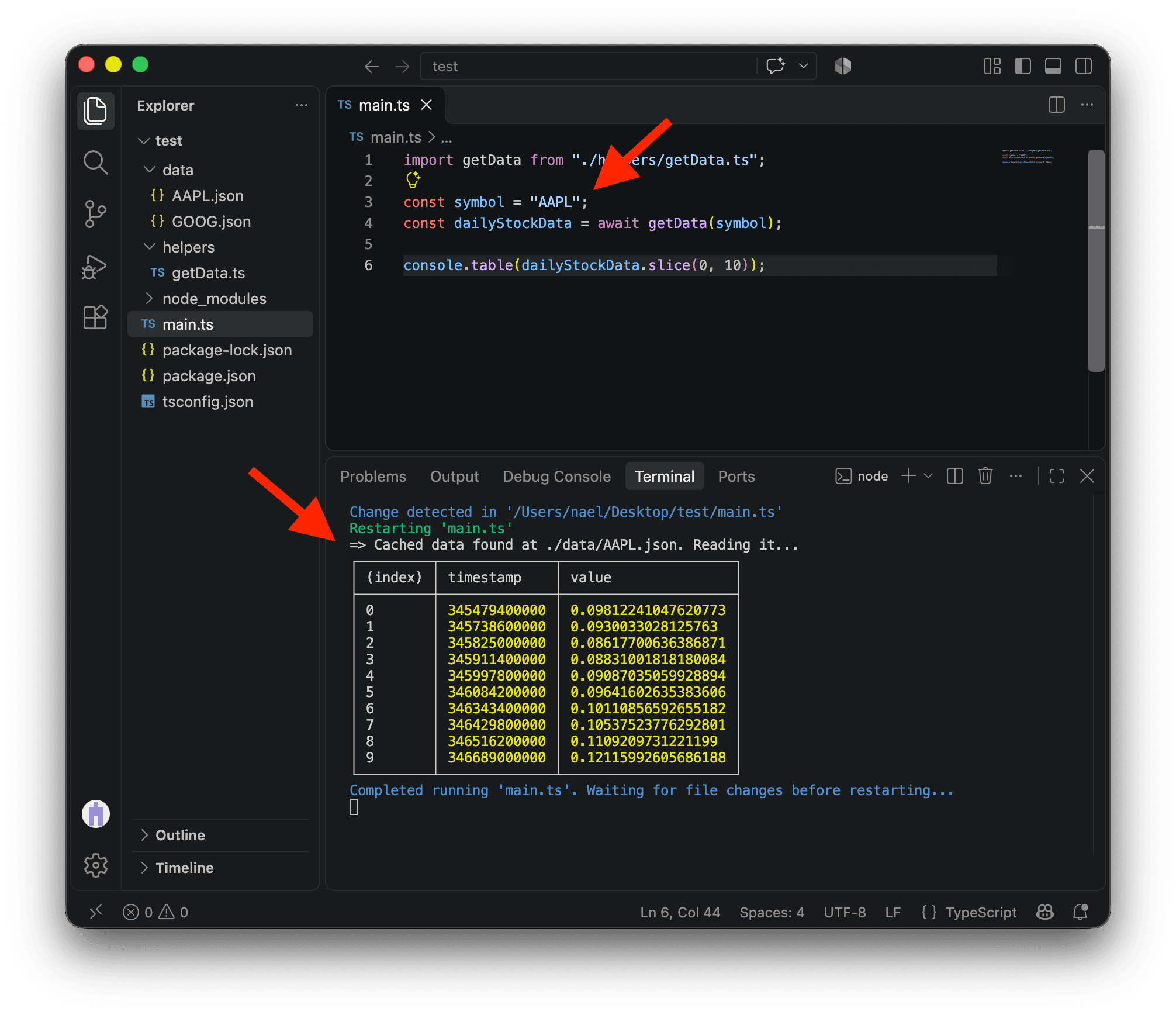
Here, we are using caching to avoid pinging Yahoo’s servers too many times. But caching is also very commonly used to improve performance. Reading a local file is much faster than fetching data over the Internet. For example, a script might perform heavy calculations that take a long time. Instead of repeating them every time the script runs, you can cache the results and read them directly on future runs.
Calculating returns
We now have everything we need to calculate returns!
Let’s create another function, calculateFinalAmount, in helpers. This function will need three parameters:
- The
amountinvested, which must be anumber - The
startDate, which is theDateof the investment - The
dailyStockDatareturned bygetYahooFinanceData, which is an array of objects pairing atimestampwith avalue
export default function calculateFinalAmount(
  amount: number,
  startDate: Date,
  dailyStockData: { timestamp: number; value: number }[],
) {
  console.log("=> Calculating final amount...");

  const filteredDailyStockData = dailyStockData.filter((dailyData) =>
    dailyData.timestamp >= startDate.getTime()
  );

  const initialValue = filteredDailyStockData[0].value;
  const finalValue = filteredDailyStockData[filteredDailyStockData.length - 1]
    .value;
  const rateOfReturn = (finalValue - initialValue) / initialValue;

  return amount + amount * rateOfReturn;
}
Here’s what happens when we call this function:
- Line 6 logs when the function is called.
- Lines 8–10 keep only data from the investment date onward.
- Line 12 retrieves the stock’s initial value.
- Lines 13–14 retrieve its latest value.
- Line 15 calculates the rate of return, which can be positive or negative.
- Line 17 calculates the final amount: the initial amount plus the amount multiplied by the rate of return.
If we run our code now, nothing will happen. We still need to call our new function in main.ts.
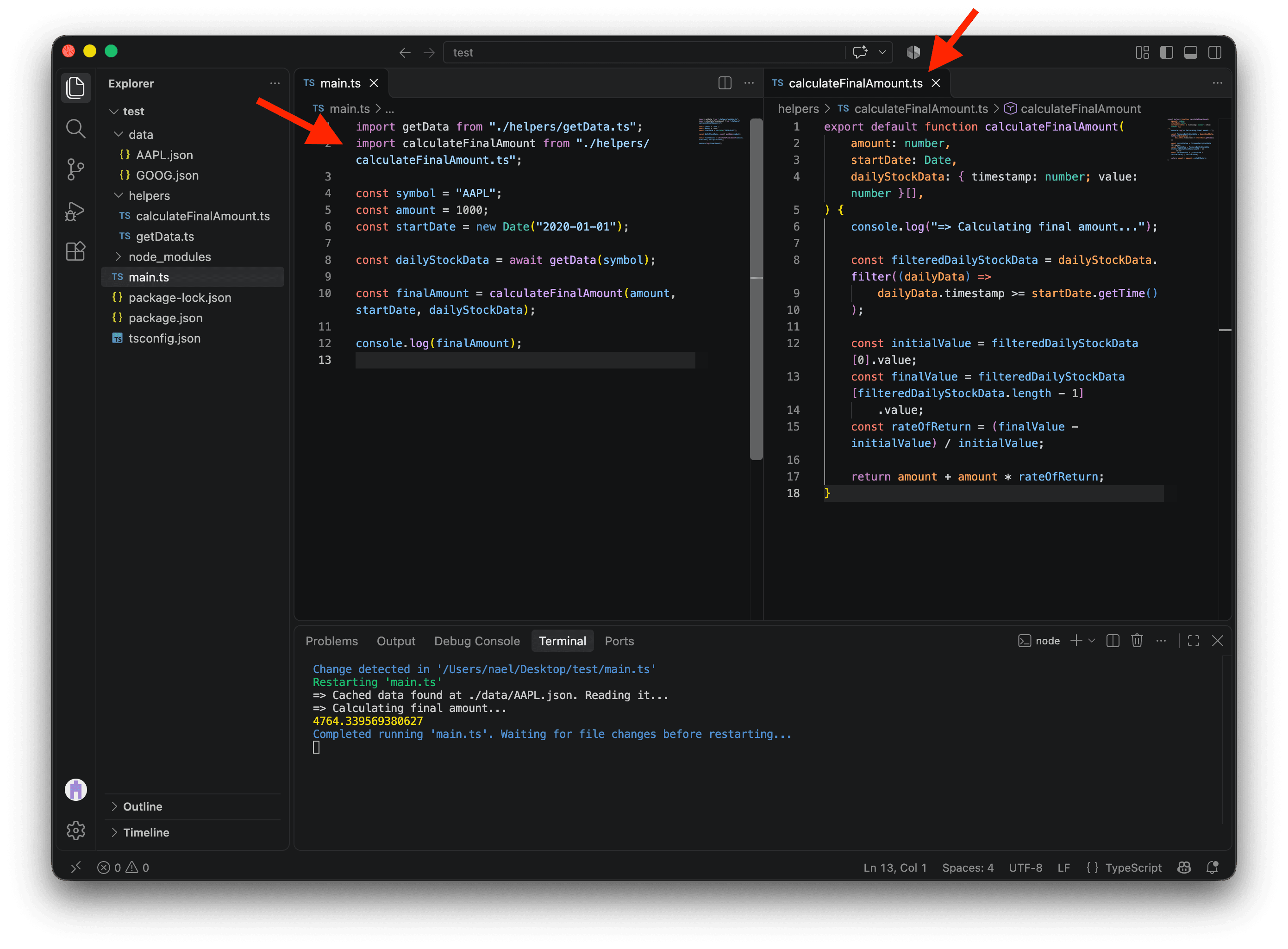
First, we import calculateFinalAmount. Then, we create the amount and startDate variables and pass them, along with dailyStockData, to the function. Finally, we store its result in a new variable called finalAmount.
import getData from "./helpers/getData.ts";
import calculateFinalAmount from "./helpers/calculateFinalAmount.ts";

const symbol = "AAPL";
const amount = 1000;
const startDate = new Date("2020-01-01");

const dailyStockData = await getData(symbol);

const finalAmount = calculateFinalAmount(amount, startDate, dailyStockData);

console.log(finalAmount);
And here’s the result! It works! You would have approximately $4,764 today (as of October 2026) if you had invested $1,000 in Apple in January 2020.
Displaying the result
Let’s create a function to display the result more clearly.
In helpers, create a function called logResult.
To make the message easier to read, we format startDate with .toLocaleDateString("en-US"). "en-US" is what we call a locale. It specifies that the date should be formatted in English for the United States, but you can pass any locale you want, such as "fr-CA" for French in Canada. We specify timeZone: "UTC" because a date-only string such as "2020-01-01" is parsed in UTC; this keeps the displayed date consistent across time zones. We also round finalAmount with Math.round().
export default function logResult(
  amount: number,
  symbol: string,
  startDate: Date,
  finalAmount: number,
) {
  const formattedDate = startDate.toLocaleDateString("en-US", { timeZone: "UTC" });
  const roundedAmount = Math.round(finalAmount);

  console.log(
    `\nIf you had invested $${amount} in ${symbol} on ${formattedDate}, you would have $${roundedAmount} today.\n`,
  );
}
We can now use this function in main.ts.
import getData from "./helpers/getData.ts";
import calculateFinalAmount from "./helpers/calculateFinalAmount.ts";
import logResult from "./helpers/logResult.ts";

const symbol = "AAPL";
const amount = 1000;
const startDate = new Date("2020-01-01");

const dailyStockData = await getData(symbol);

const finalAmount = calculateFinalAmount(amount, startDate, dailyStockData);

logResult(amount, symbol, startDate, finalAmount);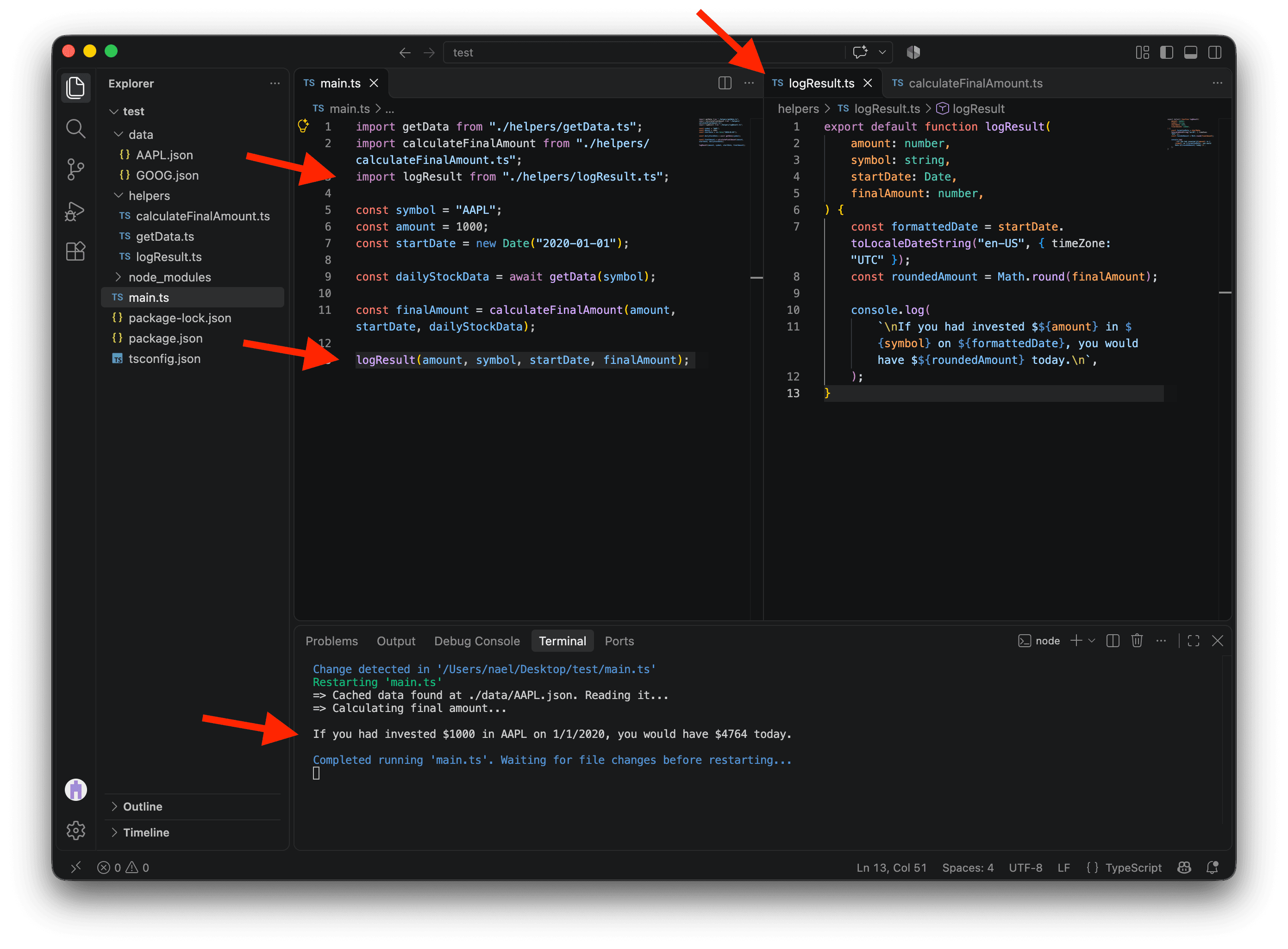
Beautiful, isn’t it? 😍
Wait a minute…
Everything works fine with a startDate of January 2020… But what would happen if the start date was in 1970, before Apple was publicly traded?
That’s impossible! Our code should warn the user.
Update startDate to "1950-01-01" to test it out… It’s returning an amount, but it should be throwing an error! 😱
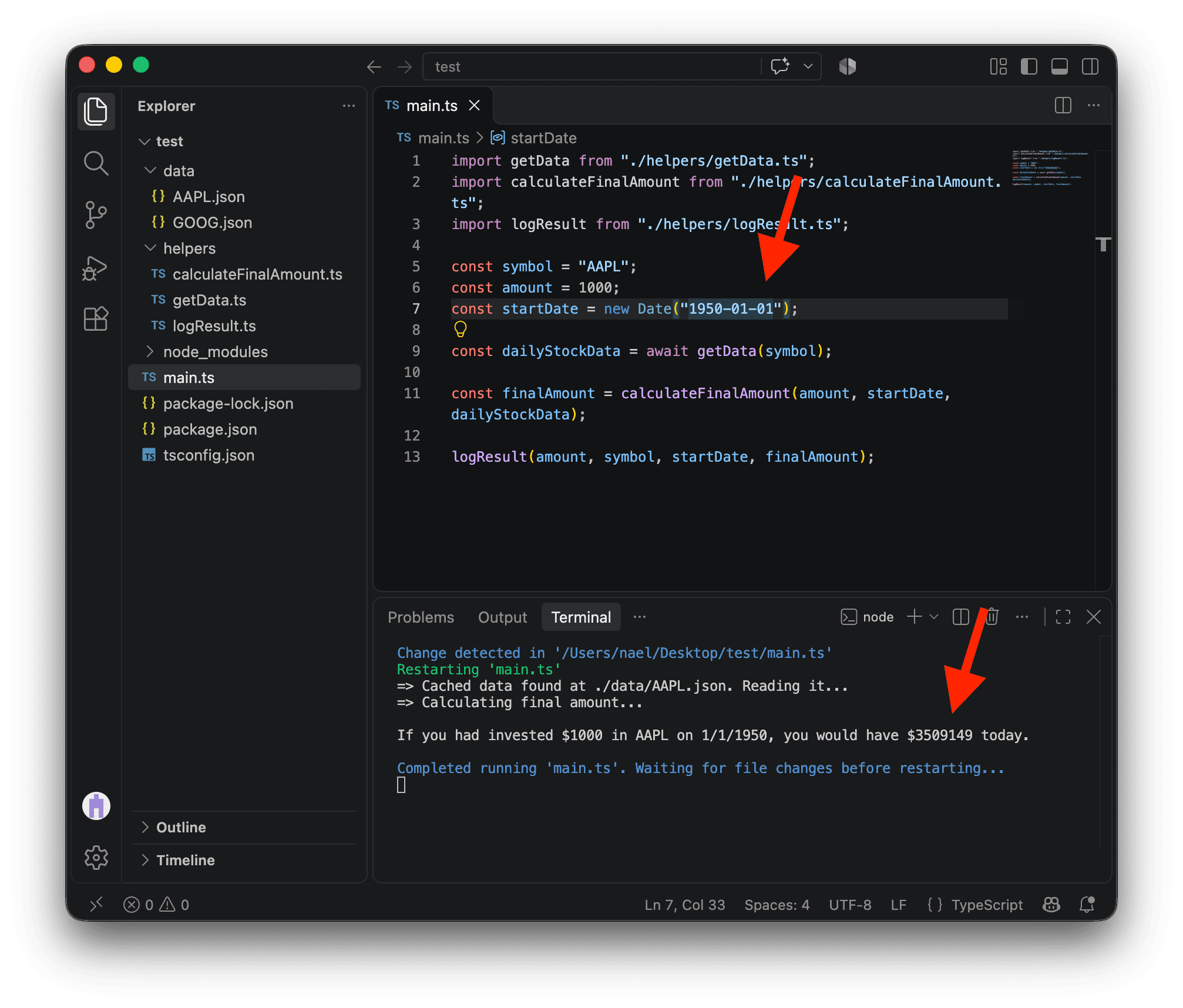
Let’s squash this bug! 🐛
We can update calculateFinalAmount, which already receives both startDate and dailyStockData. The lines we’re adding below compare the investment date with the first available price. If the investment date is earlier, the helper throws an error with a message.
export default function calculateFinalAmount(
  amount: number,
  startDate: Date,
  dailyStockData: { timestamp: number; value: number }[],
) {
  console.log("=> Calculating final amount...");

  if (startDate.getTime() < dailyStockData[0].timestamp) {
    throw new Error(
      "The company was not public at that time. Please choose a later date.",
    );
  }

  const filteredDailyStockData = dailyStockData.filter((dailyData) =>
    dailyData.timestamp >= startDate.getTime()
  );

  const initialValue = filteredDailyStockData[0].value;
  const finalValue = filteredDailyStockData[filteredDailyStockData.length - 1]
    .value;
  const rateOfReturn = (finalValue - initialValue) / initialValue;

  return amount + amount * rateOfReturn;
}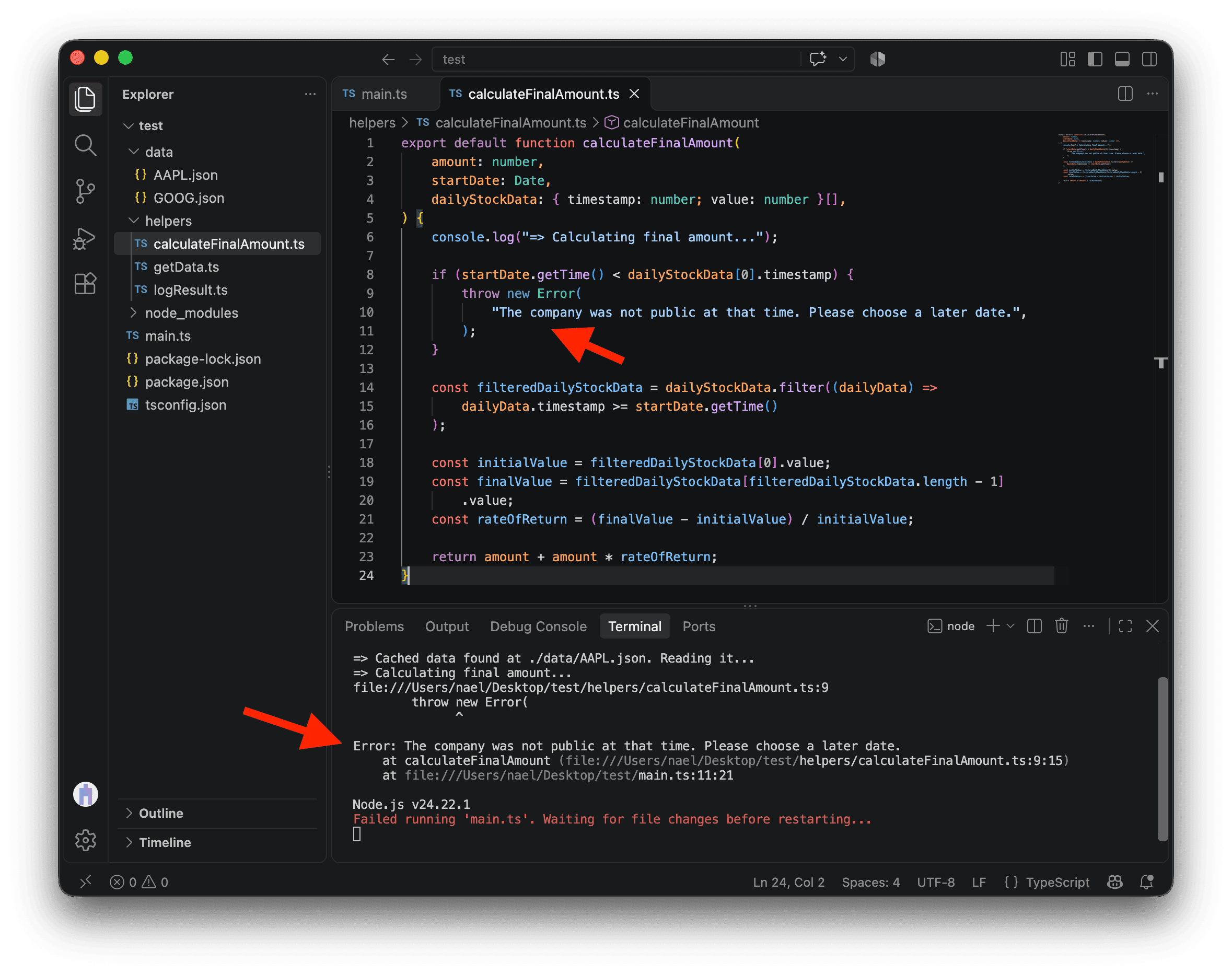
Throwing an error stops the script and (hopefully) provides a useful message. The error also shows where it originated. In the screenshot above, calculateFinalAmount.ts:9:15 means line 9, character 15 of that file. In VS Code, CMD + click this reference to jump directly to the error, which is very handy for debugging.
That’s better. We won’t return impossible results now! You can safely play with different startDate values.
But are we completely safe? What happens if you provide a date in the future? 🤔 Try to find a way to throw a different error when that happens. Here’s a hint: Date.now() gives you the current date and time as a number of milliseconds.
Conclusion
Congratulations! You’ve learned many things in this project. We used a library to fetch clean data, cached it locally, and calculated returns for an amount invested on a specific date. That’s a lot!
Now, you can experiment more with this script. Search for other companies on Yahoo’s website and copy-paste their symbols. Test different amounts and investment dates!
Or tweak the code to add more features. Here are some ideas:
- Compare the returns for multiple companies
- Invest in multiple companies at once
- Buy and sell shares at different dates
Have fun! 💃🕺